Ever wondered why your videos buffer even when your phone shows full signal bars? Signal strength and actual data speed are two very different things — and Samsung knows it.
That’s exactly why Samsung Galaxy smartphones now include a network speed indicator feature that displays your real-time upload and download speeds directly on your status bar. Whether you’re streaming Netflix, jumping on a Zoom call, or downloading a large file, this small but powerful tool gives you instant visibility into your actual connection performance.
In this step-by-step guide, you’ll learn exactly how to enable your Samsung Galaxy smartphone’s network speed indicator, why it’s useful, and how to get the most out of it.
What Is the Network Speed Indicator on Samsung Galaxy Smartphones?
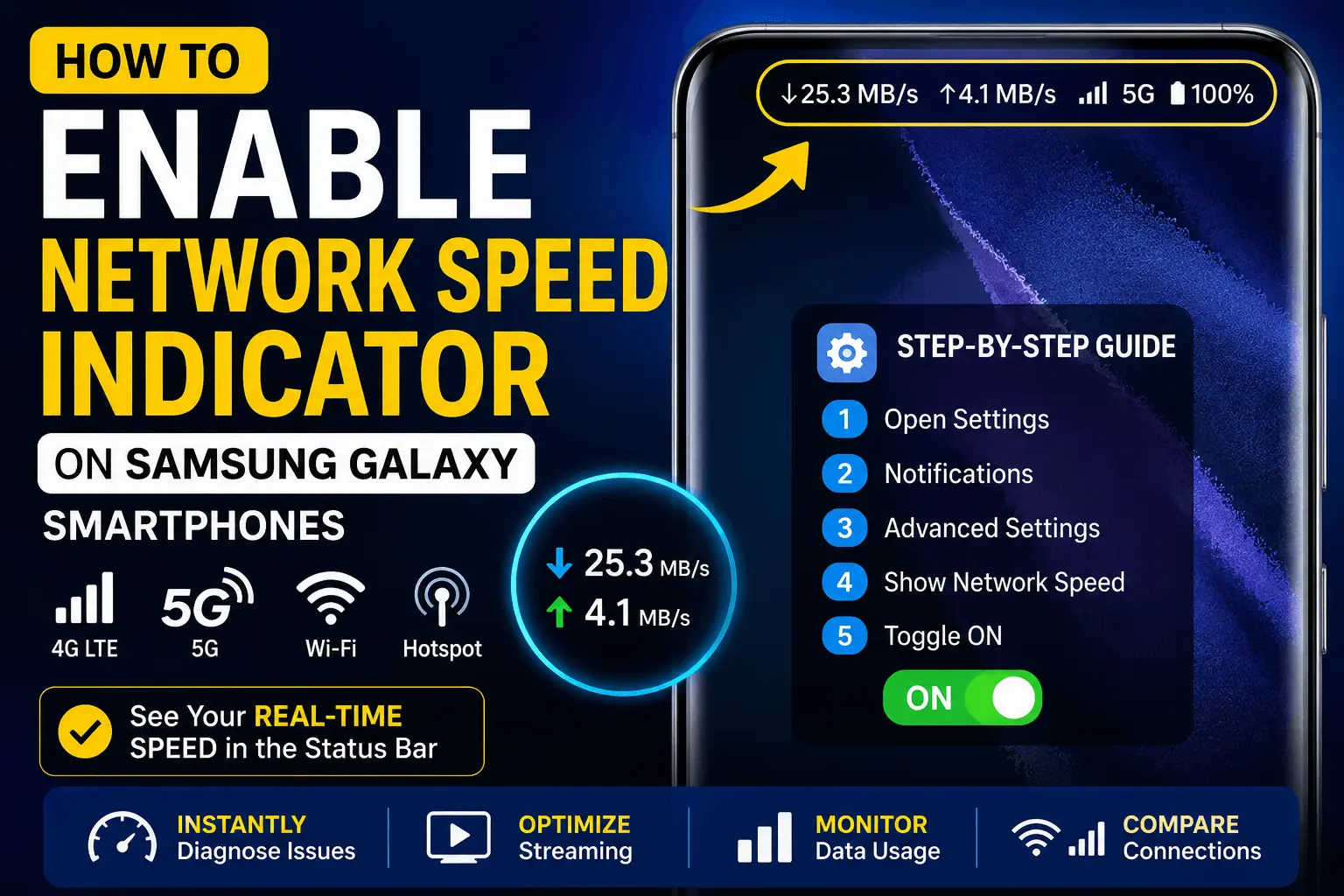
The network speed indicator is a built-in feature available on Samsung Galaxy smartphones running One UI 3.0 and later. When enabled, it displays a live readout of your internet speeds — typically shown in KB/s or MB/s — at the top of your screen in the notification/status bar area.
This feature is part of Samsung’s broader push toward giving users more transparency and control over their device performance. It works across all connection types:
- 4G LTE
- 5G networks
- Wi-Fi connections
- Mobile hotspot
Unlike third-party apps that require background permissions and battery resources, this is a native Samsung feature — lightweight, accurate, and always available.
Which Samsung Galaxy Devices Support This Feature?
Before diving into the steps, it’s important to confirm compatibility. The network speed indicator is available on:
- Samsung Galaxy S series (S21, S22, S23, S24, and newer)
- Samsung Galaxy A series (A52, A53, A54, A55, and newer)
- Samsung Galaxy Note series (Note 20 and above)
- Samsung Galaxy Z Fold and Z Flip series
Requirement: Your device must be running One UI 3.0 or higher. To check your One UI version, go to Settings > About Phone > Software Information.
Step-by-Step Guide: How to Enable the Network Speed Indicator on Your Samsung Galaxy Smartphone
Follow these simple steps to turn on the network speed indicator on your Samsung Galaxy device.
Step 1: Open the Settings App
Swipe down from the top of your screen and tap the gear icon, or find the Settings app in your app drawer.
Step 2: Navigate to Notifications
In the Settings menu, scroll down and tap on “Notifications.”
Step 3: Select Advanced Settings
Inside the Notifications menu, look for “Advanced Settings” and tap on it. This section contains several display-related toggles that control what appears in your status bar.
Step 4: Find the “Show Network Speed” Option
Within Advanced Settings, scroll until you see “Show network speed.” On some One UI versions, this may appear as “Network speed in status bar” or similar wording.
Step 5: Toggle It On
Simply tap the toggle to enable the feature. It will turn blue/green when active.
Step 6: Check Your Status Bar
Exit Settings and look at the top of your screen. You should now see a small readout showing your current upload and download speeds, updating in real time.
Pro Tip: The speed indicator refreshes approximately every second, giving you a near-live view of your network performance.
Alternative Method: Enabling via Developer Options (Advanced Users)
If you don’t see the option in Notifications > Advanced Settings, you may need to check Developer Options.
- Go to Settings > About Phone > Software Information
- Tap “Build Number” seven times until you see “Developer mode has been turned on”
- Go back to Settings > Developer Options
- Scroll and look for “Network speed” or “Show network activity”
- Enable the toggle
This method is especially useful on older One UI versions or carrier-modified software builds.
Understanding What the Numbers Mean
Once enabled, you’ll see two values displayed:
| Display | Meaning |
|---|---|
| ↓ 25.3 MB/s | Download speed (data coming in) |
| ↑ 4.1 MB/s | Upload speed (data going out) |
Here’s a quick reference for what these speeds mean in real-world usage:
- Below 1 MB/s — Slow; basic browsing only
- 1–5 MB/s — Moderate; suitable for standard video streaming
- 5–20 MB/s — Good; HD streaming and video calls work smoothly
- 20 MB/s and above — Excellent; 4K streaming, large file transfers, gaming
Real-World Benefits of Using the Network Speed Indicator
1. Instantly Diagnose Connectivity Issues
Instead of guessing why a page is loading slowly, you can see your speed in real time. If the indicator shows near-zero speeds despite a Wi-Fi connection, you know the network — not your app — is the problem.
2. Optimize Your Streaming Experience
Before starting a 4K video, a quick glance at your speed indicator tells you whether to expect smooth playback or buffering. This helps you adjust quality settings proactively.
3. Monitor Data Usage Patterns
Heavy data users can identify which activities spike their consumption, helping them stay within monthly data plan limits.
4. Compare Wi-Fi vs. Mobile Data Performance
Wondering whether your home Wi-Fi or your carrier’s 5G network is faster at a given moment? The speed indicator makes this comparison instant and effortless.
Common Issues and How to Fix Them
The Toggle Is Missing From Advanced Settings
- Ensure your device is running One UI 3.0 or later
- Check for a software update: Settings > Software Update > Download and Install
- Try the Developer Options method described above
The Speed Indicator Is Not Showing on Status Bar
- Restart your device after enabling the toggle
- Make sure your status bar isn’t cluttered — some icons get hidden when too many are active
- Check if a third-party launcher is overriding your default status bar
The Speed Readings Seem Inaccurate
- The indicator shows real-time active speed, not your maximum potential speed
- If no data is being transferred, the reading will show 0 or very low values — this is normal
Expert Insights: Making the Most of Real-Time Network Monitoring
Mobile network engineers and power users often recommend pairing the native speed indicator with Samsung’s built-in Device Care feature for a complete picture of your device’s connectivity health.
Additionally, if you’re a remote worker or frequently on video calls, enabling this feature lets you anticipate connection drops before they disrupt your meeting — giving you time to switch networks or move to a stronger signal zone.
For users on 5G-capable Samsung Galaxy smartphones, the speed indicator is especially valuable because 5G speeds can vary dramatically depending on whether you’re on Sub-6GHz or mmWave 5G — and the indicator helps you see that difference in action.
Future Trends: Where Samsung’s Network Features Are Heading
Samsung continues to invest heavily in network intelligence features across its One UI platform. With the rollout of Wi-Fi 7 compatibility in newer Galaxy models and the expansion of 5G Advanced (5G-A) networks across the US, real-time speed monitoring will become even more critical.
Upcoming One UI updates are expected to bring:
- Customizable speed indicator placement
- Historical speed graphs within Device Care
- Automatic network switching based on speed thresholds
- AI-powered network recommendations based on usage patterns
Enabling the network speed indicator today puts you ahead of the curve — and ready to take full advantage of these upcoming enhancements.
FAQ: Samsung Galaxy Network Speed Indicator
Q1: Does the network speed indicator drain battery? A: Minimal impact. Since it’s a native One UI feature rather than a third-party app, it uses negligible system resources.
Q2: Can I customize where the speed indicator appears? A: In most current One UI versions, it appears in the status bar by default. Future updates may bring more placement options.
Q3: Does this feature work on Wi-Fi and mobile data? A: Yes. The network speed indicator works across all connection types — 4G, 5G, and Wi-Fi.
Q4: Is this feature available on Samsung Galaxy budget phones? A: It depends on the One UI version. Most Galaxy A-series phones running One UI 3.0+ support this feature.
Q5: Will enabling this feature show my speed to others? A: No. The indicator is only visible on your own screen and is not shared with any app or network.
Conclusion: Take Control of Your Samsung Galaxy’s Network Performance
Your Samsung Galaxy smartphone’s network speed indicator is one of those underrated features that, once enabled, you’ll wonder how you ever lived without. It transforms a vague “signal bar” experience into a clear, data-driven view of your actual internet performance.
Whether you’re troubleshooting a slow connection, comparing networks, or simply staying informed, this feature puts real power in your hands — and it takes less than a minute to turn on.
Follow the steps in this guide, enable the feature today, and start experiencing your Samsung Galaxy smartphone in a smarter, more connected way.
Call to Action
Found this guide helpful? Share it with a friend who’s always complaining about slow internet on their Samsung Galaxy! And if you’re looking to get even more out of your device, explore our related guides on Samsung One UI tips, 5G optimization tricks, and best Samsung Galaxy settings to enable right now.
Have questions or ran into a snag during setup? Drop a comment below — we’re here to help.
Suggested External References:
- Samsung Official Support: samsung.com/us/support